Connecting Wandkit to Studio

Alireza Fard
16/11/2025
AndroidiOSWandkit
How to connect your app to Studio using Wandkit for live updates during development.
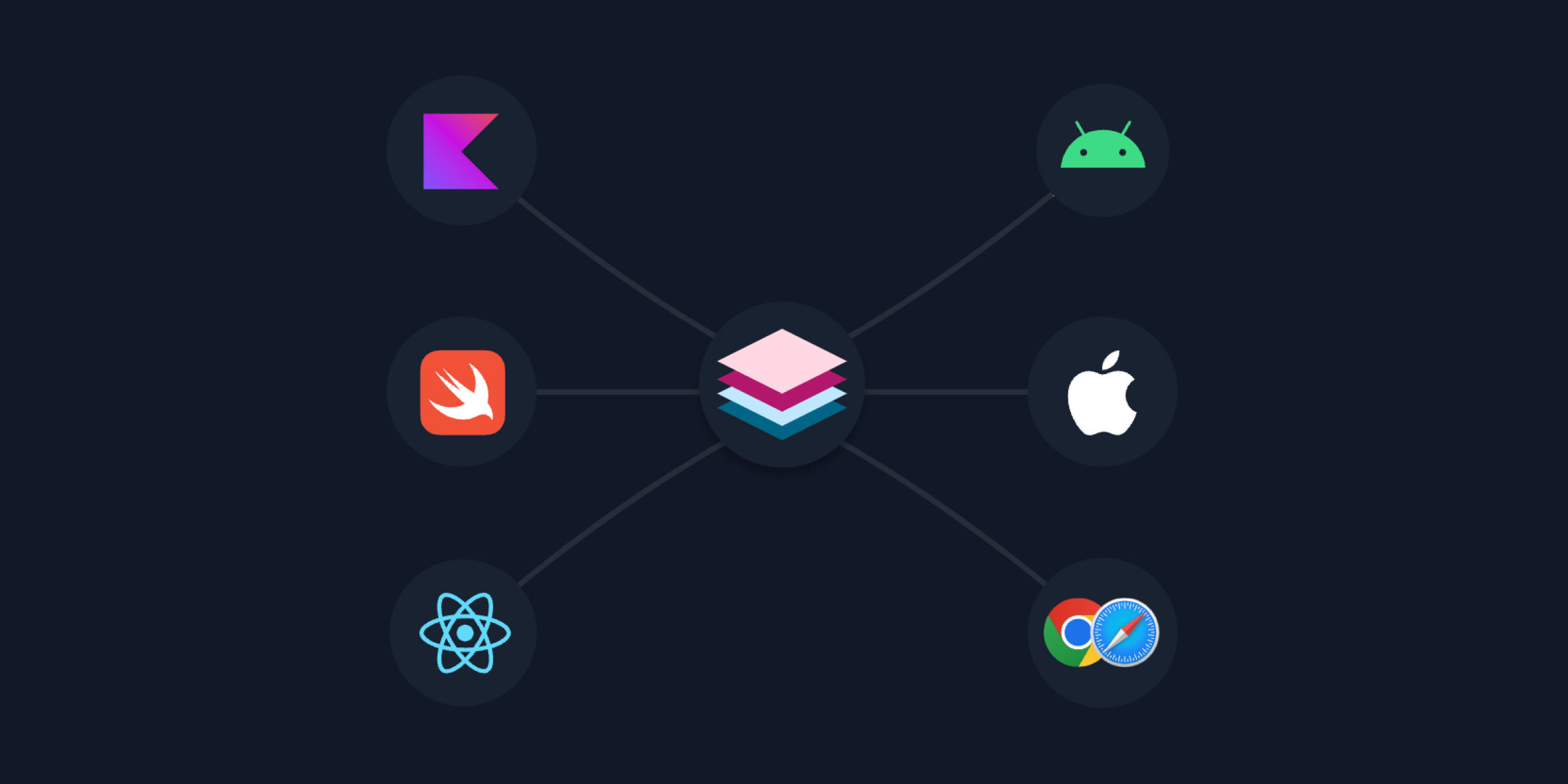
What Wandkit Is
Wandkit connects your app to Studio during development. It enables hot reload, so changes in Studio appear instantly on your device.
The only required component is DevKit. It does not affect production builds.
Setup
Android
Requirements:
- Android API level 26 or higher
- Jetpack (AndroidX)
- Initialized Nativeblocks Core SDK
- Add dependency
dependencies {
    implementation("io.nativeblocks:nativeblocks-wandkit-android:1.2.0")
}
- Initialize DevKit in your Activity (debug only, after Nativeblocks SDK)
class MainActivity : ComponentActivity() {

    override fun onCreate(savedInstanceState: Bundle?) {
        super.onCreate(savedInstanceState)

        NativeblocksManager.initialize(
            ...
        )

        if (BuildConfig.DEBUG) {
            val devKit = DevKit.Builder(this)
                .keepScreenOn()
                .autoConnect()
                .logTracking()
                .build()

            NativeblocksManager.getInstance().wandkit(devKit)
        }
    }
}
DevKit automatically handles notification permission requests using the provided Activity.
iOS
Requirements:
- Swift 5.0 or higher
- SwiftUI for UI development
- iOS 15.0 or above
- Initialized Nativeblocks Core SDK
- Add package
.package(url: "https://github.com/nativeblocks/nativeblocks-wandkit-ios-sdk", from: "1.2.0")
- Initialize DevKit (debug only, after Nativeblocks SDK)
import Nativeblocks
import NativeblocksWandkit

@main
struct MyApp: App {
    init() {
        NativeblocksManager.initialize(
            ...
        )

        #if DEBUG
        let devKit = DevKit.Builder()
            .keepScreenOn()
            .autoConnect()
            .logTracking()
            .build()

        NativeblocksManager.getInstance().wandKit(devKit)
        #endif
    }
}
Connect to Studio
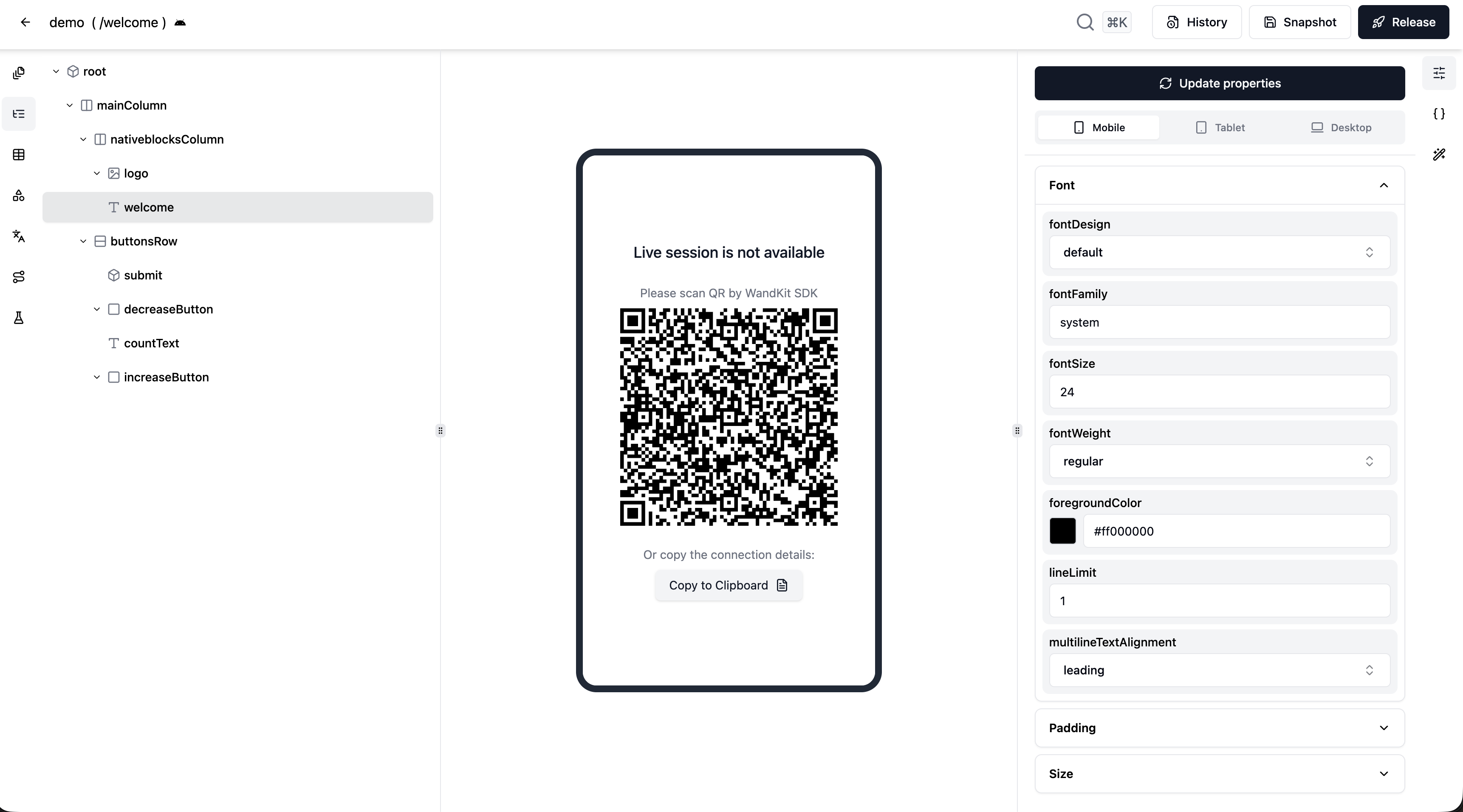
- Run the app in debug
- Open Studio
- Connect using one of:
- Scan the QR code
- Paste the token into the app
Once connected, Studio updates appear live on the device.