Nativeblocks Connect: Preview Your Screens Without Building an App

Alireza Fard
20/11/2025
See your Nativeblocks screens on real devices instantly. No coding required, no rebuilds, just design in Studio and preview in Connect.
The Preview Problem
You've designed a new checkout flow in Nativeblocks Studio. The layout looks right on your desktop browser. Components are arranged properly, spacing seems good, interactions are configured. But you won't know how it actually feels until you test it on a real device.
Integrating Nativeblocks SDK into an application requires, building it, deploying to a device or simulator, and then finally seeing your screen. This works fine when you have developers available and time to spare. But what if you're exploring an idea and want quick feedback? What if you're a product manager validating a flow? What if you need to show something to stakeholders before committing development resources?
What Nativeblocks Connect Is
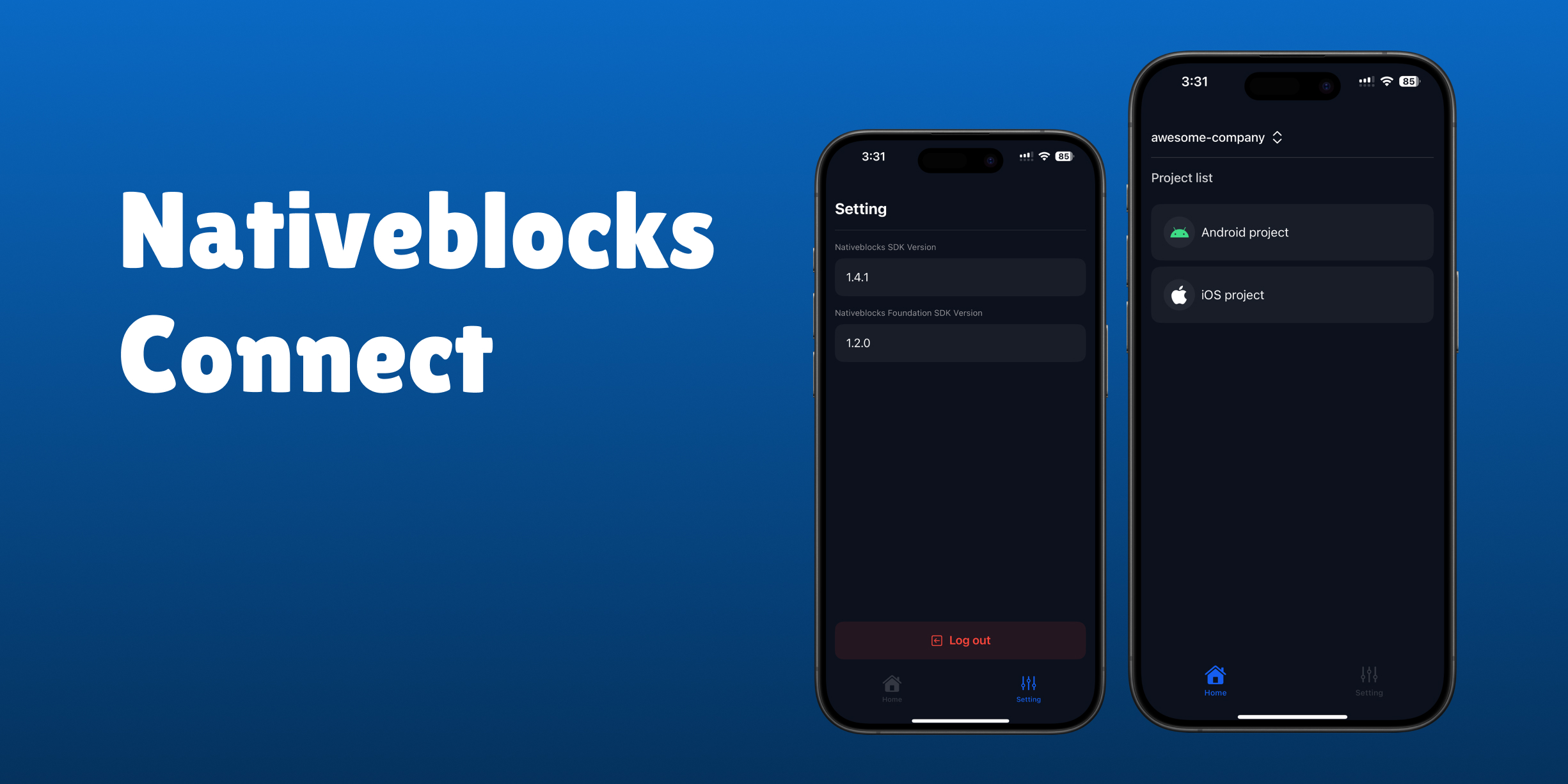
Connect is a mobile app for iOS and Android that previews any screen you build in Nativeblocks Studio. Design something in Studio, open Connect on your device, and see it immediately with native rendering and real touch interactions.
Think of it as running your Studio designs directly on actual hardware without writing any code or building any application. The same way you might preview a design file on a phone, except Connect shows fully interactive Nativeblocks screens with native components.
You might be wondering: why do I need an app to preview my designs? That's a reasonable question.
To display Nativeblocks screens, you need the Nativeblocks SDK integrated into a native application. The SDK handles parsing screen definitions, rendering blocks, managing state, and executing actions. Setting up this environment normally requires a full development workflow with Xcode or Android Studio, developer accounts, and native build processes.
Connect already has all of this built in. It's a native app with the Nativeblocks SDK and all foundation blocks pre-installed. Instead of spending time on environment setup, you just download Connect and start previewing.
Foundation Blocks vs Custom Blocks
Connect works with Nativeblocks foundation blocks. These are the standard components provided by Nativeblocks: text, buttons, images, text inputs, containers, lists, and other common UI elements. Any screen built using these components will render in Connect.
Custom blocks that you've built for your specific application won't appear in Connect. This makes sense when you think about it. Connect is a generic preview tool that works for any Nativeblocks project. Your custom components exist in your codebase with your specific business logic. Connect doesn't have access to that code.
For previewing custom blocks, you need to integrate Nativeblocks into your own app and use Wandkit for hot reload during development.
When to Use Connect vs Your Own App
Use Connect when:
- You're exploring design ideas and want quick visual feedback
- You need to validate a flow with stakeholders before development
- You're working with foundation blocks only
- You want to test layouts on real devices without building an app
Use your own app with Nativeblocks SDK when:
- You need to test custom blocks specific to your application
- You're working with backend integrations and custom actions
- You're preparing for production deployment
How to Get Started with Connect
Download Connect from the App Store or Google Play. Open the app and you'll see a login screen.
Once logged in, Connect shows all screens from your Studio project that use foundation blocks. Switch between screens in Connect. Make a change to a layout and it updates in real-time on your device.
Connect bridges the gap between design and reality. It lets you see how your screens actually work on devices without the overhead of full app development. For rapid prototyping and design validation, it's the fastest way to get Nativeblocks screens into your hands.
Learn more about Nativeblocks Connect at nativeblocks.io/connect.